
Behind the Scenes: How I Made My Site Logo
I’ve been working on building the A&P website. Today I decided to put some effort into creating a site logo. A site logo needs to be as simple but as bold as possible. Too detailed and it won’t show up clearly when used in mini frames such as the web bar or around the site as a brand marker, watermark etc. The logo needs to be a unique identifier for your followers to easily recognize anytime anywhere. 😉
I decided to try out an idea to use the first capitals of each word from Angle & Perspective with the & symbol but as typewriter buttons. I searched Pixaby and Google images for typewriter button images. I found some nice ones but the task of converting existing letters in the image to the customized letters I wanted seemed daunting, although it probably would be a good content creation skill to learn & offer to others at some point…maybe one day when I have more time and less higher prioritized duties. I also realized these would make some really eye-catching word images for stock images in the future as well (full phrases like Angle & Perspective or the title of an article, a highlighted word I want to stand out, etc.)
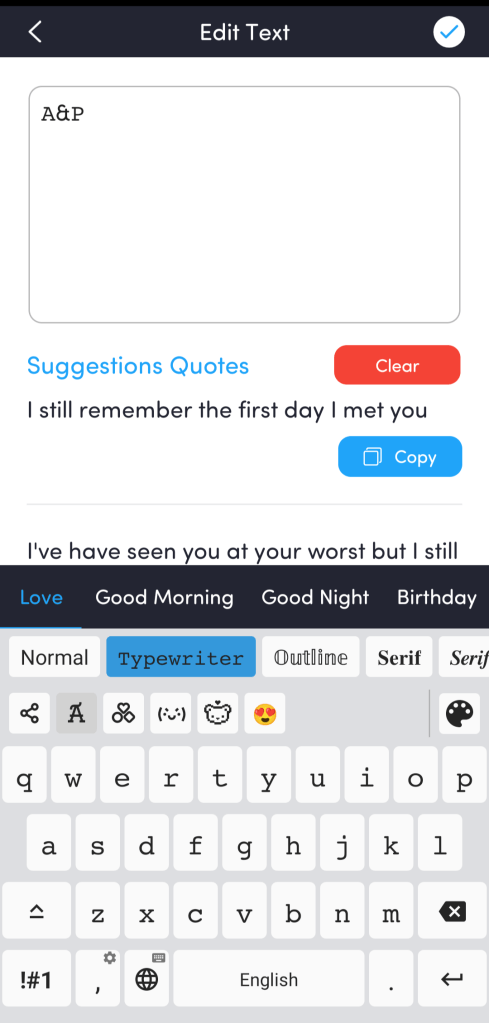
So, then I decided to look for some pre-existing software or app to make the image for me. I searched google and google play apps (on my phone) for “typewriter button font / generator” and found some really great tools. I found a typewriter keyboard font for my phone that I downloaded and tested out. Super cool! However like most apps, there’s a hurdle of garbage you have to get through to use the app (ads, trial periods, changing settings…), so we’ll see how long that lasts before I get annoyed and uninstall it. -_-
I also found some nice typewriter fonts for my computer keyboard and downloaded them. After downloading, I searched for fonts in settings, and was instructed to drag and drop font files for use. This of course did not work. Luckily, I realized by clicking on the font type file directly it opened a text screen with option to “install.”
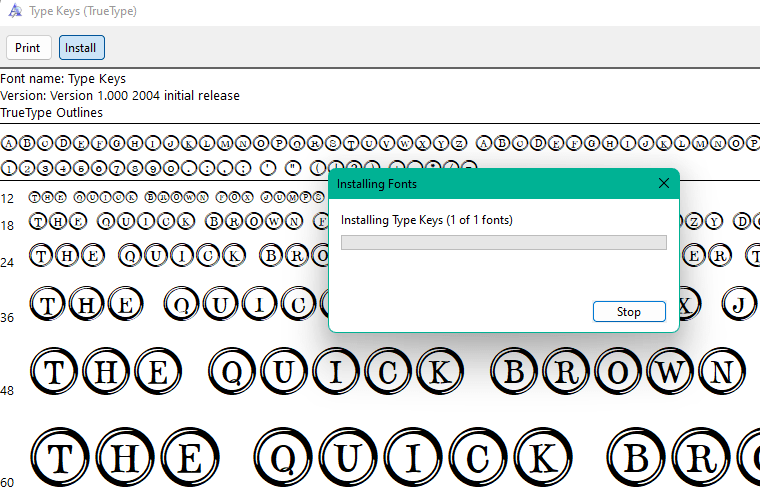
Success! I took advantage of being on the Microsoft Store screen and tried two more fonts (one failed on their end, retry later). Now, I have a fun and appropriately themed collection of fonts to choose from:
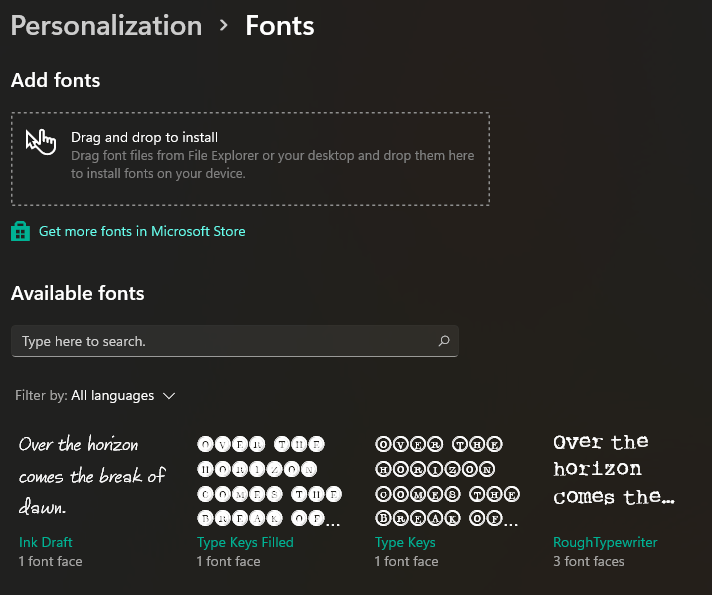
And now you know how to install specific fonts on a Microsoft computer or laptop!
Here’s a (no affiliation) video of how to install on open source software (w00t w00t!) like Open Office:
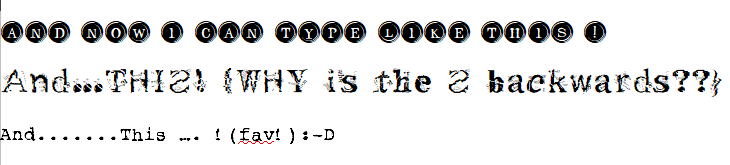
I found a really nice vintage font on Etsy I will return to at a future date…
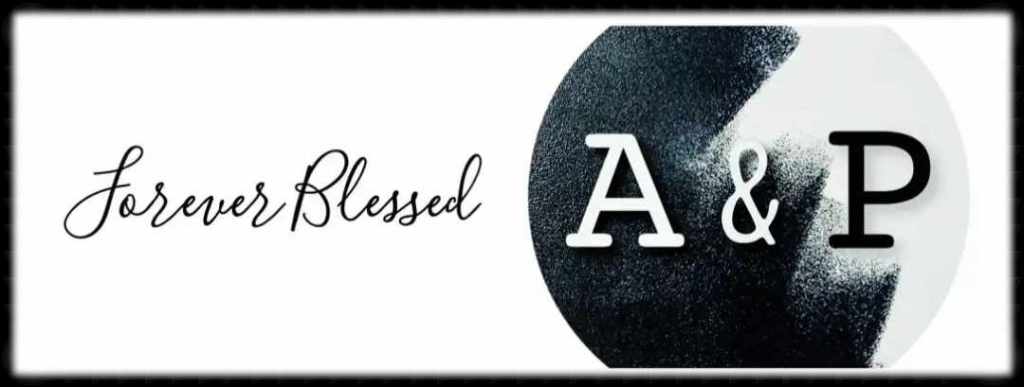
Another idea inspired by a split monochrome image in the “Text on Photo” app was to create alternating black and white capitals in typewriter buttons but I settled on this for the time being. Created in the “Text on Photo” app using the mentioned background image adding letters using the keyboard typewriter font and shadows. I then used Photoshop app on android to apply Misty filter and black and white circle borders (under basic). I then used a background editor to remove the excess background.

I went to my WP app and clicked the empty site icon and inserted the new logo picture. Done! And looks pretty dang nice!
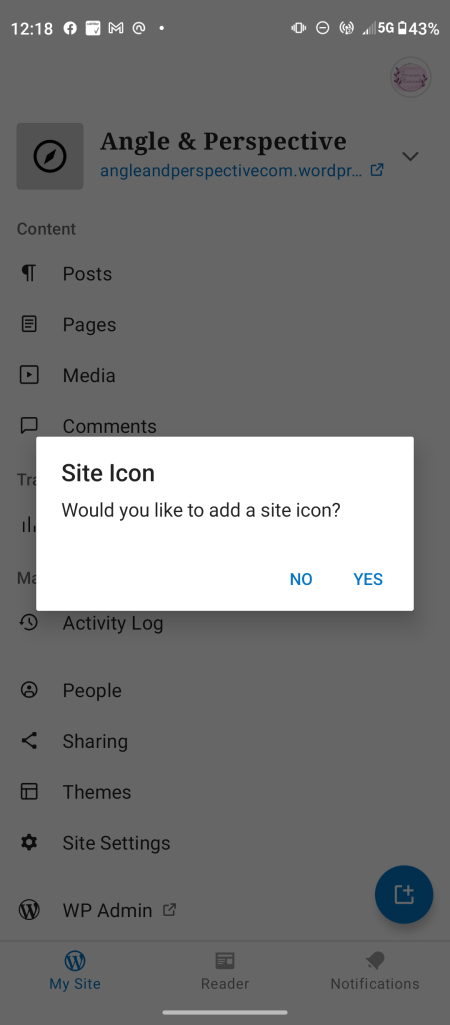

Please note that WordPress site icon apparently doesn’t allow an erased background so it applies black automatically. I had to upload the no-bg photo to the media center before it would show up correctly in a WordPress Page.
However… I didn’t care for the way the black was dominating the grayish-white side in contrast with my grayish-tone post background, so I went back to Photoshop, and applied two variations Black & White filters – HiContrast and Faded B&W.


Definitely like the faded B&W but the hi contrast will serve its purpose well. I’m still not 100% satisfied with the Logo style, but it’ll do for now.
When I announced out loud that my logo was done, my son says, “Now you’re getting money right!?” Me, “Haha no,” him, “Oh, you’re just making progress, right?” me, “Right!”
For A&P Journal,
iam: Forever Blessed!
Fonts downloaded sources:
https://www.fontspace.com/category/typewriter,keys,circles
https://www.dafont.com/rough-typewriter.font
https://www.dafont.com/type-keys.font
https://www.fontspace.com/metacopy-font-f7271
 Angle & Perspective
What’s your angle and perspective?